Per-Contact Notifications
Not every contact needs the same kind of update. Your spouse might want every check-in. Your aunt in another timezone might prefer to only hear from us if something goes wrong. I'm Alive lets you configure each contact independently — close family on the front line, extended circle as a quiet safety net.
Which plan do I need? Every plan is alert-only by default — your contact hears from us only if you go silent, never on a successful check-in. On Try It, your one contact can still be alerted, capped at one alert a month. Per-contact notification settings, unlimited miss-alerts, and SMS are part of Protect Me. The optional daily "all good" note is a per-contact opt-in (off by default) available from Stay Connected & Travel Safely up. The per-contact options below describe Protect Me capabilities.
What this looks like
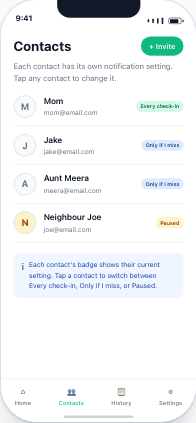
Your contacts list shows each contact's notification setting as a small coloured badge. Tap a contact to change their setting — close family on "Every check-in", extended circle on "Only if I miss", anyone you're working things out with on "Paused".
The Three Options
Every check-in
RecommendedThe contact gets a push notification and email every time you check in. They see your safety routine live — not just the bad days.
Best for: Your closest people — spouse, primary caregiver, the child who's most involved in your care. The daily ping feels reassuring, not noisy, because it's tied to your already-existing routine.
Only if I don't check in
The contact only hears from us if you miss a check-in. The rest of the time their inbox stays quiet. Optionally, they can also get a short Monday morning summary showing how the past week went — "they checked in 7/7 days."
Best for: Extended family who care about you but don't want daily notifications. Neighbors who've agreed to be a backup. Adult children with their own busy lives who want to know only if there's genuinely a problem.
Paused
The contact won't be reached — even in an emergency. They stay on your contact list but the app skips them when escalating.
Best for: A contact you're temporarily working things out with, or someone going through a tough time who shouldn't be receiving safety pings right now. The contact is preserved so you can resume later without re-entering their details.
Make sure you have at least one other contact set to "Every check-in" or "Only if I don't check in" before pausing someone — otherwise no one would be alerted in a real emergency.
Real Examples
Each contact has its own setting, so you can mix freely. Three setups that work well:
Aging parent, two children
- 👤 Daughter (lives 10 minutes away) — Every check-in. She likes the daily reassurance.
- 👤 Son (different city) — Only if I don't check in + weekly Monday summary.
Living alone, larger circle
- 👤 Spouse — Every check-in.
- 👤 Best friend — Every check-in.
- 👤 Neighbor across the hall — Only if I don't check in.
- 👤 Cousin in another country — Only if I don't check in + weekly summary.
Sorting things out
- 👤 Sister — Every check-in.
- 👤 Estranged adult child — Paused. Will switch back to "Only if I don't check in" when ready.
How to Configure
Five short steps. Takes about 30 seconds per contact.
- 1
Open the I'm Alive app and tap Contacts
From the bottom tab bar, tap Contacts. You'll see your current list with a small coloured badge next to each contact showing their current notification setting.
- 2
Tap any contact, or tap + Invite to add a new one
Existing contact: tap their name to edit. New contact: tap the + Invite button in the top right of the Contacts tab. Either way, you land on the contact details screen.
- 3
Scroll to "How should we notify [name]?"
Below the name, phone, and email fields. Three radio-style options — one is selected by default (Every check-in for new contacts).
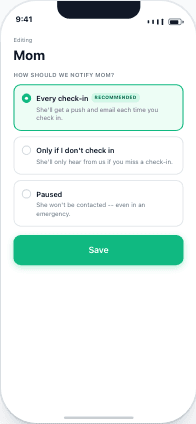
"Every check-in" selected (default) - 4
Pick the option that fits this contact
Tap the row to switch. If you pick "Only if I don't check in", a sub-toggle for the optional Monday weekly summary appears inside the option. Turn it on if this contact wants the gentle weekly "7/7 days" email.
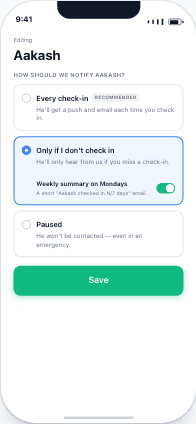
"Only if I miss" selected, weekly summary toggle on - 5
Tap Save at the bottom
Your setting takes effect immediately. The contact will receive whichever messages match the new setting starting from your next check-in. Past notifications already sent are not retroactively changed.
What Each Contact Receives
A quick reference table for the Protect Me plans. Everything is alert-only by default — the daily "they checked in" ping below is an opt-in that's off until you turn it on per contact. Both per-contact settings and the channels (push / email / SMS) depend on the user's plan. See the Escalation Alerts guide for the full plan-by-plan matrix.
| Notification | Every check-in | Only if I don't check in | Paused |
|---|---|---|---|
| Daily "they checked in" ping (opt-in) | ✓ | — | — |
| Missed check-in alert (Stage 3+) | ✓ | ✓ | — |
| Urgent alert (Stage 4) | ✓ | ✓ | — |
| Weekly Monday summary | — | Optional | — |
| All-Clear after a resolved alert | ✓ | ✓ | — |
Make Sure the Emails Reach Your Contact's Inbox
Most important thing first: the daily "they checked in" message is sent to your contact — not to you. On your own phone you simply see your check-in marked complete. So don't wait for a message on your device; the reassurance lands in your contact's inbox.
These confirmations arrive by email from I'm Alive <noreply@imalive.co>. Because they arrive every day, email providers sometimes file them under a Promotions, Updates, or Junk/Spam folder — so your contact may not notice them even though they are being delivered. Two minutes of setup fixes this permanently. Share the steps below with your contact, for whichever email app they use.
Gmail (gmail.com)
- In the search bar at the top, type
from:noreply@imalive.coand press Enter. Gmail searches every folder — including Promotions, Updates, and Spam. - Open one of the "💚 [name] has checked in!" emails.
- If it was in Spam, tap "Report not spam" at the top.
- If it was under Promotions or Updates: on a computer, drag it to the Primary tab; on the phone app, press and hold the email → Move to → Primary.
- Add the sender to Contacts (the permanent fix): open the email, tap the sender name noreply@imalive.co, then Add to contacts. Gmail always delivers mail from saved contacts straight to the inbox.
- Optional, most reliable: on a computer, open the search filter (the sliders icon in the search box), put
noreply@imalive.coin the From field, click Create filter, then tick Never send it to Spam and Always mark it as important, and click Create filter.
Outlook / Hotmail / Live (outlook.com)
- Search
noreply@imalive.coand check the Junk Email folder. - If a check-in email is in Junk, right-click it → Mark as not junk (or open it and tap Not junk).
- Add it to safe senders: Settings → Mail → Junk email → Safe senders and domains → Add, enter
noreply@imalive.co, and Save.
Apple Mail / iCloud Mail
- If a check-in email landed in Junk, open it and tap "Not Junk" (or Move to Inbox).
- Open the email, tap the sender noreply@imalive.co → Add to Contacts. Mail trusts senders that are saved as contacts.
Common Questions
My contact says they aren't getting my check-ins — what's wrong?
Almost always it's a mail-folder issue, not a delivery failure. The daily checked-in email is being sent and delivered, but your contact's email provider may file it under Promotions, Updates, or Spam. Ask your contact to search from:noreply@imalive.co, mark one as Not Spam, move it to their main inbox, and add noreply@imalive.co to their saved contacts. Full step-by-step instructions for Gmail, Outlook, and Apple Mail are in the section above.
Do I (the account holder) receive the daily check-in confirmation?
No. When you check in, the confirmation goes to your contact — it's there to reassure them that you're okay. On your side you simply see your own check-in marked complete in the app. So don't expect a message on your own phone; the reassurance lands in your contact's inbox.
Can I change a contact's setting later?
Yes — anytime. Open Contacts → tap the contact → adjust the option → Save. New setting applies from your next check-in. Past notifications aren't retroactively undone.
What's the default for new contacts?
Every check-in. That's the recommended starting point for any close contact. You can change it during contact creation or anytime later.
If I pause a contact, do they get any notifications at all?
No — not even in an emergency. Paused means we genuinely skip them. Use this only when you've decided you don't want them contacted by this app for the moment. Make sure another contact is still active to actually be alerted.
Does the contact know which setting I've picked for them?
No. The setting isn't surfaced to the contact themselves. They just see whatever notifications match the option you've picked. If they ask, you can tell them — but the app doesn't.
Can the contact change their own setting?
Not from the app — the setting is owned by the account holder (you). However, every notification email has an unsubscribe link, and any contact can opt out of SMS by replying STOP. Those opt-outs override your setting on a per-channel basis. We respect the contact's wishes if they've actively opted out.
What if I have multiple contacts on 'Paused' and a real emergency happens?
We escalate to contacts in priority order. Paused contacts are skipped at every stage. If all your contacts are paused, no alert goes out — which is why the app shows a warning if you try to set your only non-paused contact to Paused.
What's the difference between pausing a contact and my whole account being paused?
Pausing a contact (above) is something you choose — it silences one person while the rest of your safety net stays on. Separately, if you stop checking in for a long stretch, the service may automatically pause your whole account's daily monitoring — but only after messaging you first (a text after a couple of days, an email around a week in), and only for accounts that have genuinely gone quiet. If your account has emergency contacts, we let them know we've paused, so someone can check on you. Nothing is deleted, one check-in turns it back on, and paid subscribers are never paused this way without notice.